




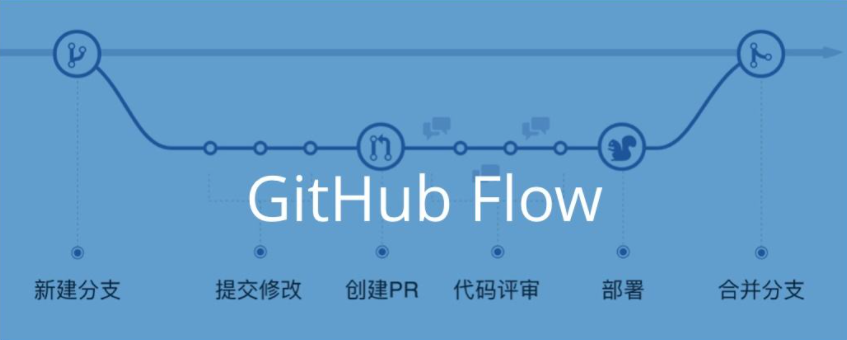
请务必谨慎操作,因为这会永久删除该分支的历史记录要清空某个 Git 分支的全部历史(即让该分支变成一个“全新开始”的分支,没有任何提交记录),可以按照以下步骤操作。
方法一:创建一个“孤儿”分支(推荐)这个方法会创建一个没有父提交的新分支,完全清空历史:
1234567891011121314151617181920# 切换到你要清空的分支(假设分支名为 your-branch)git checkout your-branch# 创建一个没有历史的“孤儿”分支(临时名称)git checkout --orphan temp-branch# 删除所有文件(保留你想要保留的文件,可选)git rm -rf .# (可选)添加新文件或保留部分文件,然后提交# 例如:echo "# New Start" > README.md; git add README.md# 提交这个“干净”的初始状态git commit -m "Initial commit after history purge"# 强制将原分支指向这个新提交git branch -M ...
如何彻底卸载 TestFlight 应用并从头开始测试
1. 卸载应用:
打开 Dock 或 Launchpad。
找到通过 TestFlight 安装的应用图标。
长按图标(或右键点击) → 选择 “移除” 或 “删除”。
系统会提示“删除 ‘应用名称’ 及其所有数据”,确认即可。
2. 清除残留数据(可选但推荐)
打开 访达(Finder),按下 Command + Shift + G,输入:
1~/Library/Containers/
查找与该应用 Bundle ID 相关的文件夹(如 com.yourcompany.YourApp),删除它。
同样可检查:
12~/Library/Application Support/~/Library/Caches/
中是否有相关文件夹,一并清理。
3. 重新从 TestFlight 安装应用注意事项
清除应用的沙盒容器
关闭 iCloud 同步
检查 Keychain(较少见,但可能)

开发环境, Unity, UI使用的是FairyGUI, 在适配刘海的时候, 需要添加适配
简单的方式如下
1. 发布IOS环境如下 12345678910 void SetScreen(GComponent w){#if UNITY_IOS if (Screen.safeArea.height != Screen.height) { float t = 1.0f * (Screen.height - 100) / Screen.height; float t1 = 1 - t; w.SetPosition(0, w.size.y * t1, 0); w.SetSize(w.size.x, w.size.y * t); }#endif }
如果输出为空或 swap 行为 0,则说明尚未启用 Swap。
2. 发布Android的环境如下 12345678 void SetScreen(GComponent ...

1. 检查当前是否已启用 Swap
123swapon --show# 或free -h
如果输出为空或 swap 行为 0,则说明尚未启用 Swap。
2. 创建 Swap 文件 以创建 2GB 的 Swap 文件为例(可根据需要调整大小):
123sudo fallocate -l 2G /swapfile若 fallocate 在某些文件系统(如 XFS 或 ext4 配合某些配置)上不被支持,可改用:sudo dd if=/dev/zero of=/swapfile bs=1M count=2048
3. 设置正确权限(安全要求) 1sudo chmod 600 /swapfile
4. 格式化为 Swap 空间 1sudo mkswap /swapfile
5. 启用 Swap 1sudo swapon /swapfile
验证是否生效:
123free -h# 或swapon --show
6. 设置开机自动挂载(可选但推荐) 编辑 /etc/fstab 文件,添加一行:
1echo '/swapfile none ...

前提条件:安装 Xcode(App Store 下载)安装 Homebrew(如果尚未安装)安装 libimobiledevice 和 ideviceinstaller
123安装依赖工具:brew install libimobiledevicebrew install ideviceinstaller
信任设备:
123用 USB 连接 iOS 设备。在 Xcode → Window → Devices and Simulators 中查看设备是否识别。如果提示“信任此电脑”,在 iOS 设备上点击“信任”。
安装 IPA:
1ideviceinstaller -i your_app.ipa
如果提示权限错误,可能需要先启用开发者模式或重新配对:
1idevicepair pair
项目环境:Unity版本 2022.3.62f2XCODE 16.4 (16F6)IOS Simulator 18.5
123456XCode在Build的时候报告错误:Undefined symbol: __swift_FORCE_LOAD_$_swiftCompatibility50Undefined symbol: __swift_FORCE_LOAD_$_swiftCompatibility51Undefined symbol: __swift_FORCE_LOAD_$_swiftCompatibility56Undefined symbol: __swift_FORCE_LOAD_$_swiftCompatibilityConcurrencyUndefined symbol: __swift_FORCE_LOAD_$_swiftCompatibilityDynamicReplacements
尝试:
12345678post_install do |installer| installer.pods_project.targets.each do ...

程序开发
未读Welcome to Hexo! This is your very first post. Check documentation for more info. If you get any problems when using Hexo, you can find the answer in troubleshooting or you can ask me on GitHub.
Quick StartCreate a new post1$ hexo new "My New Post"
More info: Writing
Run server1$ hexo server
More info: Server
Generate static files1$ hexo generate
More info: Generating
Deploy to remote sites1$ hexo deploy
More info: Deployment
概述Git 在使用过程中, git add 了一个意外添加的文件夹, 只是git add 了, 还没有commit的情况下, 如何删除当前的错误添加的文件夹。
一、查看
查看暂存区的文件:
1git status
查看暂存区的代码变更(diff):
123git diff --cached或者git diff --staged
如果返回Git的版本信息,说明安装成功。
查看某个特定文件的暂存内容
1234git diff --cached -- <文件路径>举例:git diff --cached -- src/main.py1
查看暂存区的摘要信息(类似 status 但更简洁)
1git status --porcelain
二、恢复
在 Git 中,如果你只是执行了 git add 某个你不该添加的文件夹,但还没有 commit,你可以通过以下命令将它从暂存区(staging area)移除,而保留工作目录中的文件不变:
1git restore --staged <文件夹路径>
或者,如果你使用的是较旧版本的 Git(< 2.2 ...

1. 通过对象名称查找(适用于快速原型或调试)1GameObject obj = GameObject.Find("ObjectName");
注意:Find 只能查找激活状态(active) 的对象,且对性能有影响,不建议在 Update 中频繁调用。
2. 通过标签(Tag)查找1GameObject obj = GameObject.FindGameObjectWithTag("Player");
或查找多个对象:
1GameObject[] objs = GameObject.FindGameObjectsWithTag("Enemy");
使用前需在 Unity 编辑器中给对象设置对应的 Tag。
比 Find 稍快,但仍不适合高频调用。
3. 通过引用(推荐方式)在脚本中公开一个字段,在 Inspector 中拖拽赋值:
1public GameObject targetObject;
最高效、最安全的方式,适用于已知对象且结构稳定的情况。
4. 通过组件类型查找如果目标对象上挂载了特定组件(如 ...